JPG or PNG: Which Image Format Should You Use? And Difference depends on how you store and use digital images.
Both are popular raster, pixel-based image file types with useful similarities and differences. JPEGs, JPGs, and PNG files have different pros and cons. PNG offers high-quality compression, while JPG uses less space and enables faster loading for websites, social media, and emails. A graphic designer or budding photographer can choose the best file type based on their needs to edit, share, print, or archive images.
Understanding the difference helps beginners and professionals make a better decision. JPG or PNG affects photos, printing, and how images look good online. A wrong format can cause blurry images, slow-loading web pages, or large file sizes. This guide makes the choice simple: use each image format for its different purposes. A blogger or designer may prefer JPG for smaller files and speed, while PNG can suit quality-focused images.
The keyword, format, and image formats become easier to understand through this simple and stress-free approach.
Quick Answer
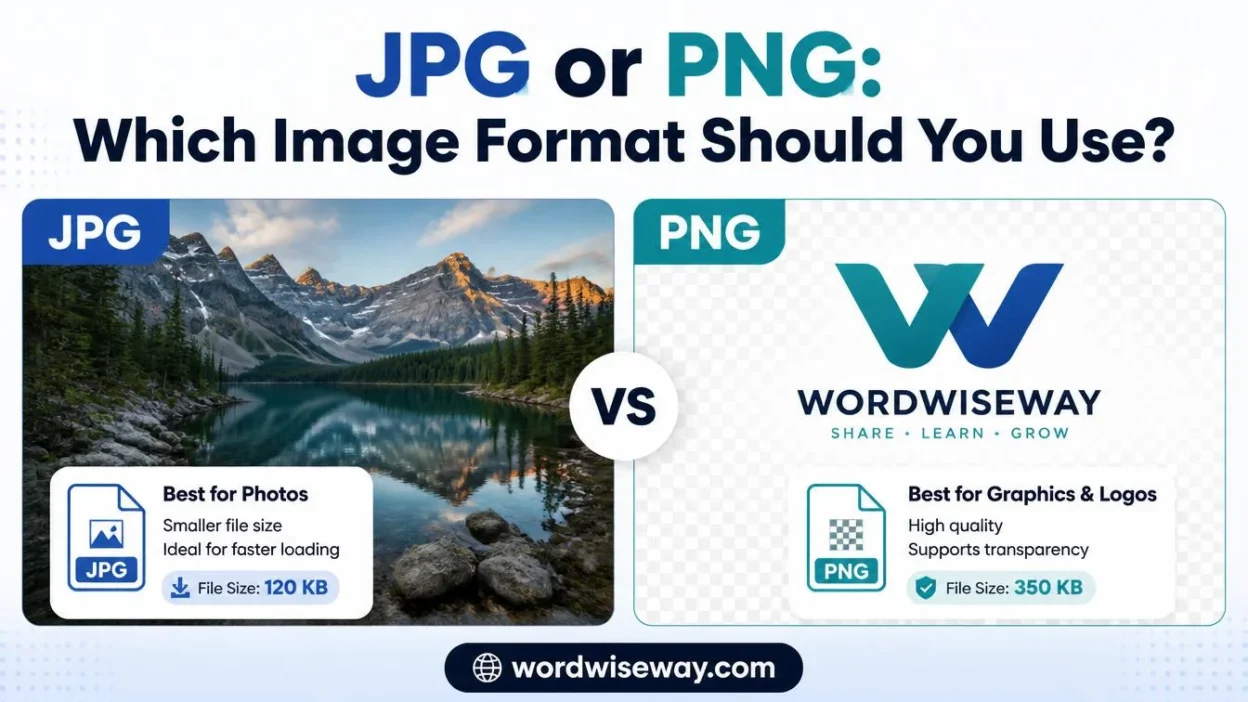
Use JPG for most photographs and other complex images where smaller file sizes matter. Use PNG for screenshots, logos, text-heavy graphics, illustrations, and images that need transparency.
Here’s the practical shortcut:
| If you need… | Better choice |
| A photograph | JPG |
| A smaller photo file | JPG |
| A transparent background | PNG |
| A screenshot with text | PNG |
| A logo with transparency | PNG |
| Sharp lines and flat colors | PNG |
| Lossless image compression | PNG |
| Efficient compression for photographs | JPG |
| Repeated editing without additional compression loss | PNG |
However, don’t treat this table as an unbreakable rule. Image content matters. A simple graphic can sometimes compress efficiently in PNG, while a photograph can become unnecessarily large when saved as PNG.
For modern websites, you should also know about WebP and AVIF. These newer formats can provide stronger compression than traditional JPG and PNG in many situations. MDN currently recommends considering WebP and AVIF alongside JPEG and PNG when choosing formats for the web.
What Is a JPG File?
JPG, commonly called JPEG, is an image format designed around efficient compression of photographic and continuous-tone images.
The names JPG and JPEG refer to the same basic format. You’ll commonly see .jpg and .jpeg file extensions. MDN lists both extensions as JPEG formats.
JPG became popular because it solves a very practical problem: photographs contain enormous amounts of visual information. Storing every pixel without compression can create hefty files. JPG reduces that burden by using lossy compression.
Think of it as packing a suitcase before a trip. You remove things you probably won’t miss. The suitcase becomes much lighter. The catch is that those removed items aren’t coming back.
JPG does something conceptually similar with image information. At higher quality settings, the discarded information may be difficult to notice. At aggressive compression levels, however, artifacts can become obvious.
How JPG Compression Works
JPG compression doesn’t simply shrink every pixel independently. The JPEG process analyzes image information and represents visual patterns more efficiently.
One important part of traditional JPEG compression involves transforming image data into a form that makes visual redundancy easier to compress. The encoder then quantizes information, which is where some detail gets discarded.
That discarded information explains why JPG is called lossy.
When you save a JPG at a lower quality level, you usually get a smaller file. You may also get:
- Softer edges
- Block-like artifacts
- Loss of fine texture
- Smudged details
- Ringing around high-contrast edges
- Less accurate color transitions
The damage becomes easier to notice when you compress the same image repeatedly.
What JPG Is Best For
JPG works particularly well when an image contains many colors and gradual tonal changes.
Good examples include:
- Digital photographs
- Travel photos
- Portrait photography
- Product photography
- Landscapes
- Food photography
- Large photographic backgrounds
- General-purpose web photos
JPEG remains one of the most widely used image formats. MDN describes it as a strong choice for lossy compression of still images.
Advantages of JPG
Small file sizes are the biggest practical advantage.
A photograph saved as JPG can be substantially smaller than an equivalent uncompressed or losslessly compressed image. That makes JPG useful when you need to store, upload, or transmit many photographs.
Other advantages include:
- Excellent compatibility
- Strong photographic compression
- Adjustable compression quality
- Broad support across browsers and applications
- Practical storage requirements
- Efficient sharing
Disadvantages of JPG
JPG has one major weakness: lossy compression changes the image data.
It also doesn’t support transparency in the way PNG does. That makes it a poor choice for graphics that need an invisible background.
You should also avoid treating a JPG as a master editing file when repeated saves matter. Every lossy re-encoding can introduce additional changes.
What Is a PNG File?
PNG stands for Portable Network Graphics. It was designed as a lossless raster image format with strong support for transparency and online use.
The current W3C PNG specification describes PNG as a lossless format for static and animated raster images. It supports indexed-color, grayscale, and truecolor images along with an optional alpha channel.
That last feature matters enormously.
The alpha channel allows pixels to carry transparency information. Instead of forcing every pixel to be fully opaque, PNG can describe varying degrees of transparency.
That’s why you can place a PNG logo over a website background without seeing a rectangular white box around it.
How PNG Compression Works
PNG uses lossless compression.
The basic idea is straightforward: the compression process reduces redundancy without throwing away the original pixel information.
When you decompress the PNG, you can recover the stored image data exactly.
This makes PNG particularly useful when small details matter. Think about a screenshot of a website. Tiny letters, interface borders, icons, and straight lines can suffer under aggressive JPG compression. PNG usually preserves these elements more cleanly.
The W3C specification specifically describes PNG as providing 100% lossless compression.
What PNG Is Best For
PNG shines when an image contains sharp edges, text, transparency, or limited color areas.
Common examples include:
- Logos
- Website screenshots
- App screenshots
- Icons
- Diagrams
- Charts
- Technical illustrations
- Text-heavy graphics
- Transparent overlays
- Interface elements
For precise reproduction, MDN recommends PNG over JPEG when image fidelity or transparency is important.
Advantages of PNG
PNG’s biggest strength is that it preserves image information through lossless compression.
It also supports:
- Transparency
- Alpha channels
- Sharp graphical edges
- Crisp text
- Lossless storage
- Broad browser support
- Progressive display options
The W3C specification also notes PNG’s support for indexed-color, grayscale, and truecolor images. The third edition supports sample depths from 1 to 16 bits.
Disadvantages of PNG
PNG’s strength can become its weakness.
Because PNG preserves image information, it often produces larger files than JPG for photographs. A large collection of photographic PNG files can consume considerable storage.
That doesn’t mean PNG always creates larger files. Compression depends heavily on the image itself.
A simple screenshot with large areas of the same color may compress remarkably well. A detailed photograph contains far more complex visual information and may become much larger as PNG.
The Key Differences
The debate becomes much easier once you understand the technical differences.
Lossy vs Lossless Compression
This is the most important distinction.
JPG uses lossy compression. PNG uses lossless compression.
With JPG, the encoder can remove information to reduce file size. With PNG, the stored image data remains recoverable after decompression.
That creates a trade-off:
JPG = smaller files with some information loss.
PNG = exact stored image information with potentially larger files.
Neither approach is inherently superior. They’re optimized for different jobs.
Image Quality
Image quality isn’t simply a contest between JPG and PNG.
A highly compressed JPG may look worse than a PNG. A well-optimized JPG photograph can still look excellent while being dramatically smaller.
For photographs, human vision often tolerates moderate JPG compression surprisingly well. Large areas of texture and gradual color changes can hide compression effects.
Graphics behave differently.
A black line against a white background has a very obvious edge. Tiny text has precise shapes. Compression artifacts around those elements can stand out immediately.
That’s why PNG often wins for screenshots and interface graphics.
File Size
For photographs, JPG usually wins the file-size battle.
For simple graphics, PNG can sometimes perform much better than people expect.
The image’s content determines the outcome. You shouldn’t assume that changing the extension automatically creates an efficient file.
Consider two hypothetical images:
| Image | JPG | PNG | Likely better choice |
| Detailed landscape photo | Smaller | Larger | JPG |
| Website screenshot | Potentially inefficient at preserving text | Often efficient | PNG |
| Transparent logo | Not suitable | Suitable | PNG |
| Flat-color icon | Can introduce artifacts | Often effective | PNG |
| Portrait photograph | Usually smaller | Usually larger | JPG |
The exact file sizes will vary with dimensions, content, encoder settings, and optimization.
Transparency
This category has a clear winner.
PNG supports transparency. Standard JPG does not.
Suppose you have a company logo that needs to sit on a blue, black, or patterned background. A transparent PNG can preserve the empty areas around the logo.
A JPG would need a solid background.
That’s one reason PNG remains common for logos and graphical assets.
Editing and Re-Saving
JPG is not ideal for repeated lossy saves.
Imagine opening a JPG, editing it, saving it, reopening it, and repeating that process dozens of times. Each JPEG encoding step can introduce further compression changes.
PNG behaves differently because its compression is lossless.
That doesn’t mean PNG magically protects an image from every editing change. If you resize, crop, paint over, or alter an image, those edits still change the image.
The important distinction is that PNG’s compression itself doesn’t discard pixel information.
For a working file that requires repeated raster editing, lossless storage can therefore be valuable.
JPG vs PNG for Different Image Types
The easiest way to choose is to stop thinking about file extensions and start thinking about the image itself.
Photographs
Choose JPG in most cases.
Photographs contain complex color variation, textures, shadows, highlights, and subtle gradients. JPG’s compression model suits this kind of visual material.
For a website containing dozens of photographs, using PNG unnecessarily can inflate total page weight.
Screenshots
Choose PNG in most cases.
Screenshots often contain:
- Small text
- Straight lines
- Buttons
- Icons
- Solid-color areas
- Sharp borders
Those features don’t always survive aggressive JPEG compression gracefully.
If you’ve ever looked at a blurry screenshot and wondered why the text seems to have a faint halo, compression may be part of the culprit.
Logos
Choose PNG when you need a raster image with transparency.
If a vector version exists, SVG may be a better choice for many web logos because SVG describes shapes rather than storing pixels. MDN specifically identifies SVG as suitable for interface elements, icons, and diagrams that need accurate scaling.
For a raster logo, however, PNG remains a dependable option.
Charts and Diagrams
PNG often works well for charts, diagrams, and technical graphics where exact lines and labels matter.
A JPG can still work for some exported graphics. However, heavy compression can create distracting artifacts around text and geometric edges.
Social Media Photos
For photographic content, JPG remains practical.
The best settings depend on the platform and its own processing. Uploading an enormous original doesn’t guarantee better results because many platforms resize or recompress uploaded images.
JPG vs PNG for Websites
Websites add another consideration: performance.
An image isn’t just a picture sitting quietly on a server. Your browser has to request it, download it, decode it, and render it.
If a page contains several oversized images, the extra bytes can accumulate quickly.
Research published in 2023 found that images accounted for about 41% of transmitted web data in its studied web context. The study also found performance advantages from newer image formats such as WebP and AVIF compared with compressed JPEG in its testing.
That doesn’t mean you should convert every image to JPG.
It means image optimization deserves a broader strategy.
Should You Use JPG or PNG for Website Images?
Use JPG for photographic images when its compression gives you an appropriate visual result.
Use PNG for graphics that need transparency or precise reproduction.
Then consider whether a newer format makes more sense for your target browsers and workflow.
MDN currently describes WebP and AVIF as modern alternatives that can provide better compression and additional capabilities compared with older JPEG and PNG formats.
Image Dimensions Matter Too
Format isn’t the only variable.
A 4,000-pixel-wide photograph can remain unnecessarily heavy even after you save it as JPG. If your website displays it at 800 pixels wide, you’re shipping image data the visitor may never need.
Before uploading an image, consider:
- Display dimensions
- File format
- Compression quality
- Image resolution
- Transparency requirements
- Browser compatibility
- Actual visual quality
Right-sizing often matters as much as choosing the right format.
Practical Case Studies
Case Study: A Travel Blog Photo
Imagine a travel blog displaying a 2,000-pixel-wide mountain photograph.
The image contains clouds, rocks, trees, shadows, and hundreds of subtle color transitions.
JPG is the sensible starting point.
Its lossy compression can reduce the file size while preserving enough visual detail for normal viewing.
PNG would preserve the image data, but that extra fidelity may provide little visible benefit for an ordinary web photograph.
Case Study: A Software Tutorial Screenshot
Now imagine a screenshot showing a code editor.
The image contains tiny letters, syntax colors, tabs, borders, and interface controls.
Here, PNG is usually the stronger choice.
The screenshot’s sharp edges and text need precise reproduction. JPG artifacts can make small characters look fuzzy or introduce distracting blocks.
Case Study: A Transparent Logo
Suppose you’re preparing a logo for a website header.
The logo needs to appear over different background colors.
PNG is appropriate when a raster file is required because it supports transparency.
If a suitable SVG exists, however, SVG may offer a better scalable solution for the web.
Common Mistakes
Saving Every Image as JPG
This approach sounds convenient, but convenience isn’t the same as optimization.
A JPG can damage screenshots, logos, diagrams, and text-heavy graphics when compression becomes visible.
Saving Every Image as PNG
The opposite mistake can be just as costly.
A photographic website filled with unnecessarily large PNG files can waste bandwidth and increase page weight.
PNG’s lossless nature is valuable when you need it. Don’t pay for that property when you don’t.
Assuming PNG Always Means Better Quality
PNG preserves the stored pixel information. That doesn’t automatically mean a PNG is visually better for every task.
A properly compressed JPG photograph can look excellent.
The better question isn’t “Which format has higher quality?”
Ask instead:
“What kind of quality does this image actually need?”
Ignoring Image Dimensions
A correctly chosen format won’t rescue an oversized image.
If your content area needs an 800-pixel image, uploading a 5,000-pixel original can create unnecessary work for the browser and unnecessary data for the visitor.
Resize first when appropriate. Then optimize.
Can You Convert JPG to PNG or PNG to JPG?
Yes, but conversion has limits.
Converting JPG to PNG
Changing a JPG into PNG doesn’t restore information that JPG compression already removed.
This distinction matters.
If a JPG contains compression artifacts, saving that file as PNG doesn’t reverse them. The PNG simply stores the current image without adding another round of lossy JPEG compression.
Think of it as photocopying a photocopy and then putting the result in a high-quality folder. The folder doesn’t recreate the original document.
Converting PNG to JPG
PNG-to-JPG conversion can make sense when:
- Transparency isn’t required.
- The image is photographic.
- Smaller file size matters.
- Some compression is acceptable.
However, transparent areas need special attention because JPG doesn’t preserve transparency.
If you convert a transparent logo to JPG, you’ll need a background color.
Which One Should You Use?
Use this decision guide when you’re unsure:
| Your situation | Recommended format | Why |
| Digital photograph | JPG | Efficient lossy compression |
| Portrait photo | JPG | Good balance of size and quality |
| Landscape photo | JPG | Handles complex photographic detail well |
| Website screenshot | PNG | Preserves text and sharp edges |
| Transparent logo | PNG | Supports transparency |
| Simple icon | PNG | Strong choice for crisp raster graphics |
| Technical diagram | PNG | Preserves fine graphical details |
| Text-heavy image | PNG | Avoids many JPEG artifacts |
| Photo where exact pixel preservation matters | PNG | Lossless storage |
| Modern web delivery | WebP/AVIF may be worth considering | Newer formats can offer stronger compression |
The final row matters because JPG and PNG aren’t the entire modern image-format landscape. Current browser support makes WebP and AVIF practical options for many websites, although compatibility and workflow requirements still matter.
Read More: Router or Modem: Difference and Which One Do You Need?
FAQs
What is the main difference between JPG and PNG?
JPG is generally better for photographs because it creates smaller files through lossy compression. PNG keeps more image detail and works well for graphics, screenshots, and images that need transparency.
Is JPG or PNG better for websites?
JPG often works better for photographs on websites because smaller file sizes can help pages load faster. PNG is useful when an image contains text, sharp edges, or transparency that needs to remain clear.
Which format gives better image quality?
PNG usually preserves more original image information because it uses lossless compression. JPG can still provide excellent quality, but saving it repeatedly can gradually reduce image detail.
Should I use JPG or PNG for photos?
JPG is usually the practical choice for everyday photos. It can keep a photo looking good while taking up less storage space, making it convenient for websites, emails, and online sharing.
Is PNG better for logos?
PNG is often a strong option for logos, especially when the logo needs a transparent background. It can also preserve clean edges and small details that might become less sharp after JPG compression.
Which format is smaller, JPG or PNG?
JPG files are commonly smaller than PNG files, particularly when you’re saving photographs. The exact size depends on the image itself, its dimensions, and the compression settings used during export.
Can JPG and PNG both be used online?
Yes, both formats are widely used online. JPG suits photographs and other detailed images, while PNG is more suitable for graphics, screenshots, illustrations, and images where transparency matters.
Is PNG or JPG better for printing?
Either format can work for printing when the image has sufficient resolution and quality. For photographs, JPG is often convenient, while PNG can be useful when preserving sharp graphics or transparency is important.
Can PNG have a transparent background?
Yes. PNG supports transparency, which makes it useful for logos, icons, illustrations, and other graphics that need to appear over different backgrounds.
How do I choose between JPG and PNG?
Start by considering the type of image and what you need from it. Choose JPG when smaller files and efficient online sharing matter most. Choose PNG when transparency, sharp graphics, or lossless quality are more important.
Conclusion
Choosing between JPG and PNG doesn’t have to feel like a technical puzzle. Think about the image’s purpose first. JPG is usually a practical choice for photographs and online content where smaller files matter, while PNG shines with graphics, transparency, and images that need stronger detail preservation.
The right format can also improve how you manage your images over time. Before exporting or uploading a file, consider its quality, size, transparency needs, and final destination. Once you understand these differences, selecting JPG or PNG becomes a quick decision instead of a guessing game.

Amelia Sanders has spent 14 years in Harvard University’s English Department, helping students navigate literary analysis, interpretive theory, and narrative techniques. Her academic pursuits center on 18th-century British prose, romantic poetry, diasporic writing, and digital editing exploring how textual choices influence cultural perspectives. Amelia has spoken at major international meetings and contributed essays to respected academic volumes, demonstrating her dedication to thoughtful scholarship and effective teaching.