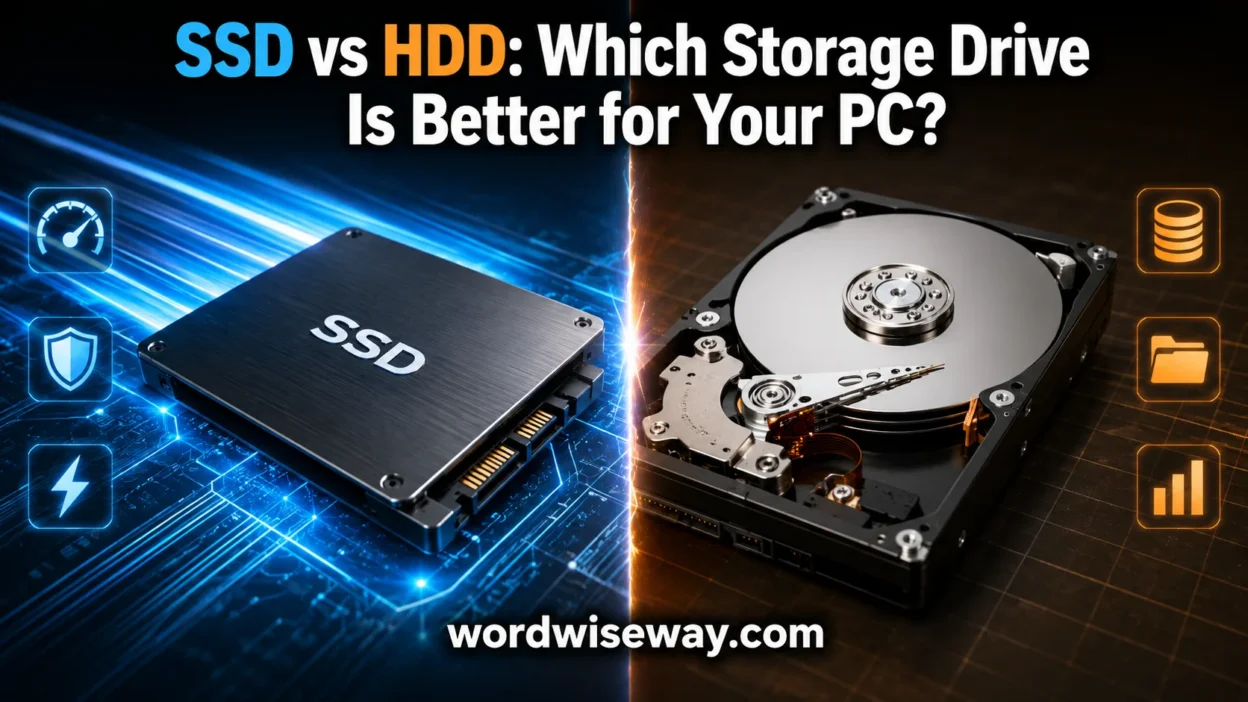
Choosing SSD vs HDD: Which Storage Drive Is Better for Your PC? means comparing storage performance, cost, and storage needs before buying or upgrading a computer.
An SSD, or Solid State Drive, provides faster access, while an HDD, or Hard Disk Drive, offers more storage capacity for the price. Both storage drives serve the same purpose of storing data, but their storage technology works differently.
Your needs should guide the buying decision for gaming, work, or everyday use. An SSD can improve computer performance, while an HDD can provide a practical storage solution. Understanding these key differences helps you avoid wasted money, poor performance, and a wrong choice.
Quick Answer:
For most modern computers, an SSD is the better primary storage drive. It starts the operating system faster, opens applications more quickly, handles random file access far better, operates quietly, and has no moving parts.
An HDD makes more sense when capacity and cost per gigabyte matter more than speed. For example, someone storing several terabytes of photos, videos, backups, or archived files may find an HDD more economical.
If you don’t want to choose between speed and capacity, there’s another option: use both. Put Windows, applications, games, and active projects on an SSD. Keep large media collections, archives, and less frequently used files on an HDD.
| Feature | SSD | HDD |
| Storage technology | NAND flash | Magnetic platters |
| Moving parts | No | Yes |
| Access speed | Very fast | Much slower |
| Noise | Nearly silent | Mechanical noise possible |
| Shock resistance | Generally higher | Generally lower |
| Power use | Generally lower | Generally higher |
| Cost per GB | Usually higher | Usually lower |
| Best use | OS, apps, gaming, active files | Bulk storage, archives, backups |
| Typical modern interface | SATA or NVMe/PCIe | SATA |
What Is an SSD?
An SSD, or solid-state drive, stores data electronically using NAND flash memory. Unlike an HDD, it doesn’t need spinning platters or a mechanical arm to locate information.
When you open a program, the SSD’s controller retrieves data from flash memory. Because there are no mechanical components waiting for a platter to rotate into position, the drive can access small pieces of data extremely quickly.
That difference becomes especially noticeable when your operating system needs to access thousands of small files. Starting Windows, launching a browser, opening a large application, or searching through folders can feel considerably more responsive.
“SSDs are semiconductor-based storage devices that rely on flash memory.”
SSDs also come in different forms. A 2.5-inch SATA SSD resembles the size and shape of many laptop HDDs. An M.2 SSD looks more like a small circuit board and plugs directly into a compatible motherboard slot.
However, M.2 doesn’t automatically mean NVMe. M.2 describes a physical form factor, while NVMe describes a storage protocol. An M.2 drive can use SATA or NVMe depending on the hardware.
What Is an HDD?
An HDD, or hard disk drive, stores data magnetically on spinning platters.
Inside the drive, a motor spins the platters while mechanical read/write heads move across their surfaces. The heads locate the areas containing the required data and then read or write information.
This mechanical design has served computers for decades. It remains useful because manufacturers can produce HDDs with large capacities at relatively low cost per gigabyte.
The drawback is movement. The platters must spin and the heads must physically move to different locations. That creates latency that flash storage largely avoids.
An HDD can also experience performance loss from fragmentation. When pieces of files become scattered across different areas of the disk, the mechanical head may need to move between locations to retrieve them.
SSDs don’t have that same mechanical positioning problem.
Which Is Faster?
SSD wins the speed battle by a wide margin.
The exact difference depends on the drives, interface, workload, and computer. Still, the architectural advantage is clear. An SSD can access data electronically while an HDD must physically position its mechanical components.
Kingston notes that random-read testing can show SSDs performing more than 20,000% faster than high-performance HDDs in some comparisons. That figure shouldn’t be treated as a universal real-world speed difference, but it illustrates how dramatically random access can differ between the technologies.
Sequential Speed vs Random Access
Storage benchmarks often advertise sequential read and write speeds. These measure how quickly a drive can move large, continuous blocks of data.
That’s useful for tasks such as:
- Copying large video files
- Moving disk images
- Transferring large project folders
- Reading large datasets
However, everyday computer responsiveness often depends heavily on random access. Your operating system constantly handles many small files and requests data from different locations.
That’s where SSDs really stretch their legs.
SATA SSD vs NVMe SSD vs HDD
Not every SSD has the same performance.
A SATA SSD uses the SATA interface and can deliver a major improvement over an HDD. NVMe SSDs use PCIe and were designed specifically for high-performance flash storage.
Modern NVMe drives can reach several thousand MB/s depending on the PCIe generation and drive model. SATA SSDs have a much lower interface ceiling, yet they’re still dramatically more responsive than traditional HDDs.
| Drive type | Main connection | General performance |
| HDD | SATA | Slowest |
| SATA SSD | SATA | Fast |
| NVMe SSD | PCIe | Very fast |
That doesn’t mean every user needs the fastest NVMe drive available. For browsing, schoolwork, office applications, and everyday computing, even a basic SSD can transform an older system.
SSD vs HDD for Gaming
If you play PC games, an SSD is usually the better choice for game storage.
The biggest benefit comes from loading. Games constantly retrieve textures, models, maps, audio files, and other assets. Faster storage can reduce loading times and make transitions between areas smoother in games designed to stream assets from storage.
However, don’t confuse storage speed with graphics performance.
An SSD doesn’t magically increase your GPU’s rendering power. It won’t turn a low-frame-rate game into a high-frame-rate game simply because you installed it on faster storage.
Think of the SSD as the game’s fast supply route. Your CPU and GPU still do the heavy lifting once the data arrives.
When an HDD Still Makes Sense for Gaming
An HDD can still work well as secondary game storage when:
- You have a large game library.
- Storage capacity matters more than loading speed.
- You don’t frequently play every installed game.
- You already own a high-capacity HDD.
A practical setup might place frequently played games on an SSD while keeping older or rarely played titles on a larger HDD.
SSD vs HDD for Laptops
SSDs make particular sense in laptops.
Because an SSD has no spinning platters or moving read/write heads, it generally handles physical movement better than an HDD. That’s useful when a computer travels between school, home, work, or other locations.
SSDs also operate quietly because there’s no mechanical disk spinning inside the drive. They generally use less power than HDDs as well, although actual consumption varies by model and workload.
For a laptop, that combination creates a compelling package:
- Faster startup
- Quieter operation
- Lower mechanical vulnerability
- Compact form factors
- Generally lower power consumption
Before upgrading a laptop, though, check its storage compatibility. Some machines support only a particular M.2 type. Others use a 2.5-inch SATA drive. The slot, connector, physical dimensions, and supported protocol all matter.
For Desktop PCs
Desktop computers give you more flexibility.
You can build a system around a single SSD, a single HDD, or a combination of both. For many users, the SSD + HDD configuration offers the most practical balance.
For example:
SSD
- Windows
- Applications
- Frequently played games
- Active editing projects
- Frequently accessed files
HDD
- Photos
- Videos
- Music libraries
- Archived projects
- Large downloads
- Secondary copies of files
This arrangement gives the computer a fast working area without forcing every terabyte of storage onto more expensive flash storage.
Storage Capacity
When capacity becomes the main concern, HDDs remain competitive.
Imagine you need several terabytes for a huge collection of videos and photographs. You may not need every file to open instantly. In that situation, paying a premium for all-flash storage may provide little practical benefit.
An HDD can offer substantial capacity at a lower cost per gigabyte. IBM describes HDDs as the more affordable storage type based on cost per gigabyte.
SSDs make more sense when the files are part of your active workflow.
For example, a video editor might store current projects and frequently used footage on an SSD. Older completed projects can move to a larger HDD or another backup system.
The key question isn’t simply “How much storage do I need?”
Ask instead:
“How often do I need this data, and how quickly do I need to access it?”
SSD vs HDD Price and Cost per Gigabyte
HDDs generally offer a stronger price-per-gigabyte advantage, especially as capacity increases.
SSDs have become much more affordable than they were when solid-state storage first entered the mainstream. Even so, large-capacity SSDs can still cost more than comparable HDD storage.
Don’t compare drives only by their advertised capacity. Look at:
- Capacity
- Price
- Interface
- Read/write performance
- Endurance rating
- Warranty
- Intended workload
A cheap SSD isn’t automatically a bargain if it doesn’t meet your workload or compatibility requirements.
Likewise, an enormous HDD isn’t necessarily the best choice if you spend your day waiting for applications to load.
Durability
Here the physical design creates another major difference.
An HDD contains moving parts. Spinning platters and mechanical heads make it more vulnerable to physical shock and vibration, especially while operating. An SSD has no comparable mechanical mechanism.
That doesn’t make an SSD indestructible. Electronics can fail. Flash memory has endurance limits. Controllers can malfunction.
Still, the absence of moving parts gives SSDs an important advantage in portable devices and environments where vibration or accidental movement is a concern.
Lifespan and Reliability
The lifespan question isn’t as simple as saying “SSDs last longer” or “HDDs last longer.”
The two technologies age differently.
SSD endurance is often described using TBW, or terabytes written. This estimates how much data can be written to a drive over its rated endurance period. Flash cells gradually wear as they undergo repeated program and erase cycles. SSD controllers use technologies such as wear leveling to distribute writes across the available memory.
HDDs have different failure mechanisms. Mechanical components can wear out or fail unexpectedly.
Most importantly, neither technology should be your only copy of valuable data.
A Simple Backup Rule
For important photographs, documents, projects, and personal files:
- Keep the working copy on your computer.
- Maintain another copy on separate storage.
- Keep an additional copy somewhere physically separate when the files are especially important.
A storage drive is not a backup strategy by itself.
SSD vs HDD Power, Heat, and Noise
An HDD needs a motor to spin its platters and mechanical movement to position its heads. That creates noise and consumes energy.
SSDs don’t need those mechanical operations. As a result, they’re generally quieter and often more power-efficient. Kingston specifically notes the power and noise advantages of SSDs over HDDs.
This matters most in laptops, compact computers, quiet workstations, and recording environments.
You may barely notice the difference while browsing the web. Put both drives into a quiet room, however, and the mechanical hum or clicking of an HDD can become more noticeable.
SSD vs HDD for Different Users
For Students
An SSD is usually the better everyday choice.
Schoolwork involves browsers, documents, presentations, PDFs, coding tools, and countless small files. Faster random access makes the whole system feel more responsive.
If you also need several terabytes of storage for media, an HDD can work well as secondary storage.
For Gamers
Choose an SSD for your operating system and games whenever possible.
The biggest advantage is faster loading rather than higher FPS.
For Video Editors
Fast SSD storage can make active projects easier to work with, particularly when moving large files or handling demanding workflows.
An HDD can still serve as inexpensive storage for completed projects and archives.
For General Home Users
An SSD is the strongest all-around choice for the primary drive.
If you need massive storage at a lower cost, combine it with an HDD.
For Backup and Archive Storage
HDDs can be attractive for large-capacity storage because of their cost per gigabyte.
However, important data should never exist in only one location.
Can You Use an SSD and HDD Together?
Yes. In fact, this can be one of the most sensible storage setups.
Consider a desktop with a 1 TB SSD and a 4 TB HDD.
The SSD handles Windows, applications, games, and current projects. The HDD stores older photographs, videos, installers, archives, and other large files.
This setup gives you a fast working environment without forcing every file onto expensive high-performance storage.
It’s essentially a two-lane road: the SSD handles fast-moving traffic while the HDD carries the bulk load.
SSD vs HDD Myths You Should Ignore
“SSDs Never Fail”
False.
SSDs can fail because of flash wear, controller problems, firmware issues, electrical faults, or other hardware failures.
“HDDs Are Obsolete”
Not quite.
HDDs remain useful for high-capacity storage where cost per gigabyte matters.
“M.2 Means NVMe”
No.
M.2 is a form factor. NVMe is a protocol. An M.2 SSD can use SATA or NVMe depending on the drive and system.
“SSD Speed Determines FPS”
No.
An SSD can improve loading and responsiveness. Your CPU and GPU still determine most game rendering performance.
“The Most Expensive SSD Is Always Better”
Not necessarily.
A high-end NVMe drive can be overkill for simple browsing and office work. Your workload should determine your storage choice.
Case Study: Upgrading an Older PC From HDD to SSD
Consider an older desktop that takes a long time to start Windows and frequently pauses when opening programs.
Replacing its HDD with a compatible SSD doesn’t necessarily change the processor or RAM. Yet the computer can feel dramatically different because storage access becomes much faster.
The improvement is especially noticeable during:
- System startup
- Application launches
- File searches
- Software updates
- Random file access
- Multitasking
This is why an SSD upgrade can sometimes make an aging computer feel surprisingly fresh without replacing the entire machine.
Read More: Mac or PC: What’s the Difference? and Usage
Quick Decision Guide
| If your priority is… | Choose |
| Fast boot times | SSD |
| Quick application launches | SSD |
| Gaming load times | SSD |
| Laptop storage | SSD |
| Quiet operation | SSD |
| Better shock resistance | SSD |
| Lowest cost per GB | HDD |
| Large media libraries | HDD |
| Bulk storage | HDD |
| Fast storage plus large capacity | SSD + HDD |
FAQs
What is the main difference between an SSD and HDD?
An SSD uses flash memory, while an HDD uses spinning magnetic disks. This difference affects speed, durability, noise, and overall performance.
Is an SSD faster than an HDD?
Yes. An SSD generally loads the operating system, programs, and files much faster than an HDD. You’ll usually notice quicker startup and application loading.
Is an HDD cheaper than an SSD?
Usually, yes. HDDs often provide more storage capacity at a lower price, making them useful when you need lots of space without spending as much.
Which is better for gaming, SSD or HDD?
An SSD is generally the better option for gaming because it can reduce game loading times. It doesn’t automatically increase every aspect of gaming performance, though.
Which storage drive lasts longer?
SSDs have no moving mechanical parts, which makes them more resistant to physical shocks. HDDs contain moving parts that can be more vulnerable to physical damage.
Can I use an SSD and HDD together?
Yes. Using both can be a practical setup. You can place your operating system and frequently used programs on an SSD while keeping larger files on an HDD.
Is an SSD worth upgrading from an HDD?
For many computers, upgrading from an HDD to an SSD can make the system feel considerably more responsive. Startup times and program loading can improve noticeably.
Which is better for storing large files?
An HDD can be a cost-effective choice for large collections of videos, photos, backups, and other files. An SSD makes more sense when fast access matters.
Is an SSD completely better than an HDD?
Not necessarily. SSDs excel at speed and responsiveness, while HDDs can offer affordable high-capacity storage. The better choice depends on your budget and requirements.
Should I choose SSD or HDD for my PC?
Consider how you use your PC, how much storage you need, and your budget. For speed-focused use, an SSD is usually the stronger choice, while an HDD works well for affordable bulk storage.
Conclusion
Choosing between an SSD and HDD comes down to what you expect from your PC. SSDs deliver quick, responsive performance and work especially well for operating systems, programs, and gaming. HDDs remain useful when affordable, high-capacity storage matters more than speed.
For many users, combining both drives offers a balanced solution. An SSD can handle everyday computing and frequently used applications, while an HDD can store larger files and backups. This approach gives you speed where it counts and capacity where you need it.

Amelia Sanders has spent 14 years in Harvard University’s English Department, helping students navigate literary analysis, interpretive theory, and narrative techniques. Her academic pursuits center on 18th-century British prose, romantic poetry, diasporic writing, and digital editing exploring how textual choices influence cultural perspectives. Amelia has spoken at major international meetings and contributed essays to respected academic volumes, demonstrating her dedication to thoughtful scholarship and effective teaching.