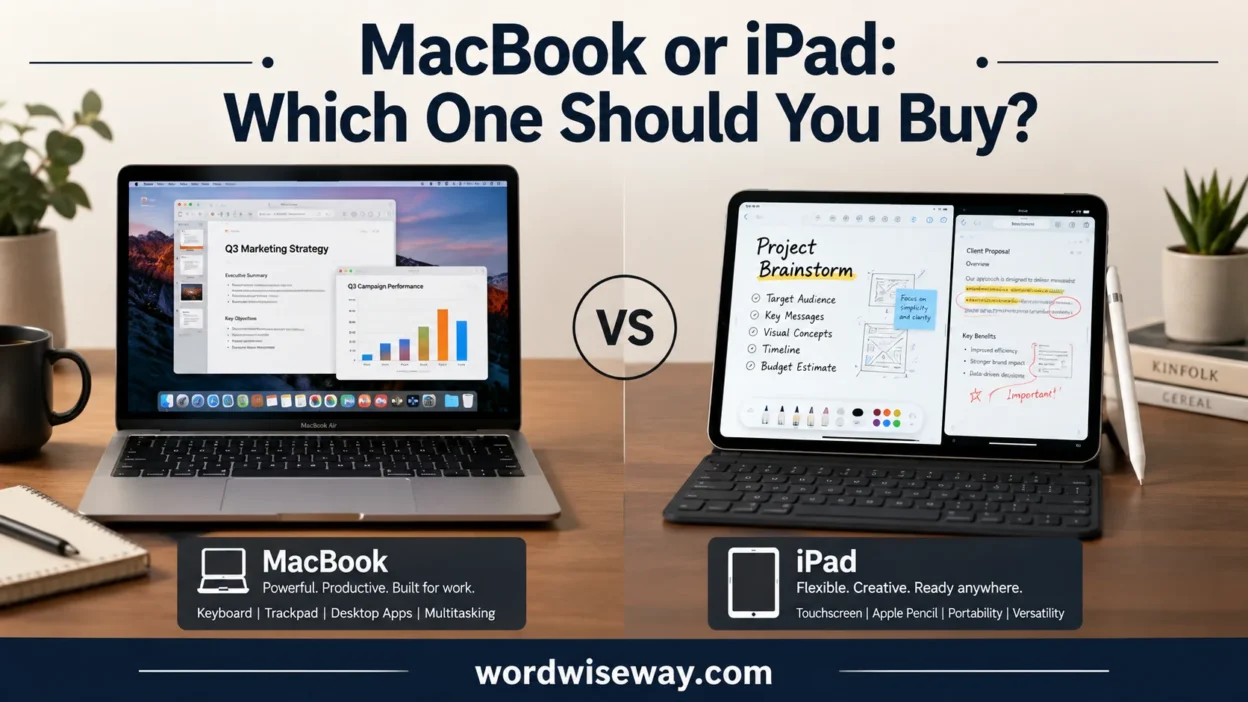
As a student, balancing school, social life, and academic workload requires the right device. MacBook or iPad: Difference and Correct Usage helps you compare performance, price, features, and budget before choosing. Your personal life and daily tasks also matter when deciding which option fits your needs.
The MacBook offers a full computer experience for work, studies, and creative projects, while the iPad provides a lightweight device for browsing, media, and note-taking. Both are powerful, portable, and designed for different needs.
A clear comparison helps students, professionals, and casual users make an informed choice and avoid common mistakes.
Quick Answer
Choose a MacBook if you need a full-time computer for writing, coding, professional software, file management, multitasking, or long keyboard sessions.
Choose an iPad if you prioritize touch input, handwriting, drawing, reading, portability, and Apple Pencil support.
If you can afford only one device and aren’t sure what you’ll need, a MacBook is generally the safer primary computer. It provides the conventional desktop environment that many school, work, and professional tasks still expect.
An iPad becomes the more compelling choice when its tablet-specific strengths are central to your workflow. Handwritten notes, PDF annotation, illustration, touch-based interaction, and lightweight entertainment are where the iPad feels less like a smaller computer and more like its own category.
MacBook vs. iPad at a Glance
| Feature | MacBook | iPad |
| Operating system | macOS | iPadOS |
| Form factor | Laptop | Tablet |
| Built-in keyboard | Yes | No |
| Touchscreen | No | Yes |
| Apple Pencil | No | Supported on compatible models |
| Trackpad | Built in | Available with compatible keyboard accessories |
| Handwriting | Limited compared with iPad | Excellent |
| Drawing | External input required | Excellent with Apple Pencil |
| Desktop-style file management | Strong | More streamlined |
| Traditional multitasking | Strong | Stronger than earlier iPadOS versions, but still different from macOS |
| Professional desktop software | Broad selection | App availability varies |
| Portability | Excellent | Excellent |
| Best primary computer | Yes | Depends on workflow |
| Best tablet experience | No | Yes |
The table reveals something important: performance isn’t the only dividing line. The operating system and physical design shape how you’ll use each device.
What’s Actually Different?
The biggest difference isn’t the processor. It’s the operating system.
macOS vs. iPadOS
macOS was designed around traditional computers. You work with windows, folders, files, menus, external displays, keyboards, mice, trackpads, and a broad desktop software ecosystem.
iPadOS takes a different approach. It puts touch interaction at the center while adding increasingly capable multitasking and window management. That makes the iPad much more productive than the tablet you might have used years ago.
Still, an iPad running a powerful Apple chip doesn’t become a Mac simply because the processor is fast.
This distinction becomes obvious when you work with specialized software. A Mac can run the macOS versions of many professional applications. On iPad, you’ll need to check whether the app exists and whether its iPad version offers the features you need.
For casual productivity, the difference may barely matter. For professional workflows, it can be decisive.
Laptop Design vs. Tablet Design
A MacBook gives you a keyboard and trackpad every time you open the lid. There’s no accessory decision.
The iPad starts as a touchscreen tablet. Add a keyboard and it can handle substantial typing. Remove that keyboard and you have a lighter, more flexible device for reading, drawing, browsing, and media.
Think of the distinction this way:
- MacBook: computer first, portable second.
- iPad: tablet first, productivity device second.
Neither approach is inherently superior. Your routine determines the winner.
MacBook vs. iPad for Performance
Performance comparisons can become misleading when they focus only on chip names.
Apple currently offers M5 chips across the MacBook Air and MacBook Pro families, while the MacBook Neo uses the A18 Pro. Current iPads range from the A16 in the standard iPad to M4 in the iPad Air and M5 in the iPad Pro.
Apple Silicon and Real-World Performance
A faster processor helps, but software determines what you can actually accomplish.
For example, an iPad Pro with an M5 chip has enormous processing capability. That doesn’t automatically make it a better workstation than a MacBook with comparable silicon because iPadOS and macOS expose different capabilities.
For everyday work, both can feel extremely responsive.
The gap becomes more noticeable when you need:
- Complex file management
- Multiple desktop applications
- Developer tools
- Advanced browser workflows
- Professional media applications
- Several external peripherals
- Desktop-class multitasking
- Specialized software
That’s why “which has the faster chip?” isn’t the most useful question.
Ask instead: Which device lets you use that performance effectively?
Which Handles Heavy Work Better?
For demanding computer-first workloads, MacBook generally has the advantage because macOS supports a broader desktop workflow.
A MacBook makes more sense when your workload includes:
- Software development
- Large spreadsheets
- Extensive document work
- Professional audio production
- Complex video projects
- Desktop publishing
- Multiple external devices
- Large file libraries
The iPad can handle demanding creative tasks too. Its advantage appears when touch or Pencil interaction becomes part of the process.
MacBook or iPad for School and College
Students often face the toughest choice because both devices can look ideal on paper.
The answer depends heavily on whether your schoolwork revolves around typing or handwritten interaction.
Note-Taking and Reading
The iPad has a natural advantage for handwritten notes.
With a compatible Apple Pencil, you can write directly on the display, mark up PDFs, sketch diagrams, highlight material, and organize handwritten study material.
That makes the iPad particularly useful for subjects where visual annotation matters.
Imagine studying from a long PDF. On a MacBook, you’ll generally work with the keyboard, trackpad, and display. On an iPad, you can put the Pencil directly onto the page and annotate it.
That difference isn’t cosmetic. It changes the workflow.
Research and Writing
For long-form writing, the MacBook usually feels more natural.
A physical keyboard stays attached to the computer. You can keep research windows open, move between documents, organize files, and work with several browser tabs without turning your tablet into a laptop imitation.
An iPad with a keyboard can handle essays and assignments well. However, if your entire day involves typing, a MacBook’s built-in keyboard and desktop environment make more sense.
Online Classes and Presentations
Both devices can handle video calls, documents, presentations, and web-based learning.
The iPad offers greater flexibility when you want to move around or use touch input. The MacBook offers a more conventional desk-based workflow.
For students who need one device for research, writing, coding, presentations, and file management, the MacBook usually wins.
For students who mainly read, annotate, draw, and take handwritten notes, an iPad can be the better fit.
MacBook vs. iPad for Work
Workplaces introduce another important factor: software compatibility.
Office and Productivity Tasks
Both platforms can handle everyday productivity tasks such as:
- Web browsing
- Word processing
- Presentations
- Spreadsheets
- Video meetings
- Cloud storage
- Web applications
The difference appears when those basic tasks become more complicated.
For example, a simple spreadsheet may work perfectly well on an iPad. A large business workbook with specialized formulas, extensive data manipulation, or complex workflows may be much more comfortable on a Mac.
The same principle applies to document management. If your work involves opening, moving, renaming, uploading, compressing, and organizing large numbers of files, macOS generally offers the more conventional environment.
Professional Software
Before buying an iPad for work, check every major application you use.
Don’t assume that an iPad version is identical to the Mac version.
A developer, for instance, should verify the tools needed for their exact programming workflow. A designer should check the applications and features they depend on. A video editor should examine project compatibility, storage requirements, plug-ins, and export options.
That small research step can prevent a very expensive headache.
Remote Work
For remote work, the MacBook is usually the stronger all-purpose option.
Its built-in keyboard, trackpad, desktop multitasking, and broad software support make it easier to build a complete workstation around one device.
The iPad shines when portability matters more. It’s excellent for meetings, reading documents, presentations, note-taking, and lightweight work away from a desk.
MacBook vs. iPad for Creative Work
Creative users have one of the strongest reasons to consider an iPad.
Drawing and Digital Art
For digital illustration, the iPad’s touchscreen and Apple Pencil combination is difficult to replicate on a MacBook.
You draw directly on the canvas. There isn’t a mouse or trackpad sitting between your hand and the artwork.
Current iPad models include Apple Pencil support according to model and generation, so compatibility should be checked before purchasing. Apple’s current comparison page lists the iPad Pro, iPad Air, iPad, and iPad mini families separately.
For illustrators, students, architects, and visual learners, this can be the deciding factor.
Photo Editing
Both devices can edit photos effectively.
The MacBook provides a more traditional desktop workflow. You get the keyboard, trackpad, larger file-management environment, and desktop application ecosystem.
The iPad adds direct touch editing. That can make certain adjustments feel immediate and intuitive.
The best choice depends on the software rather than the camera megapixel count or processor name.
Video Editing
The iPad can handle serious video work, especially on higher-end models.
However, professional editors should examine the complete workflow. Consider:
- Project size
- External storage
- File transfers
- Application features
- Plug-ins
- Multiple displays
- Keyboard shortcuts
- Audio equipment
- Long editing sessions
For straightforward mobile editing, an iPad can be remarkably capable.
For complex professional production, a MacBook usually provides the more flexible environment.
Music and Audio Production
MacBook has the stronger position for desktop-oriented audio production.
Music workflows can involve specialized applications, external audio interfaces, MIDI equipment, plug-ins, libraries, and multiple windows. macOS is better suited to that traditional workstation model.
An iPad remains useful for mobile music creation and touch-based applications. It simply isn’t the same type of workstation.
MacBook vs. iPad for Gaming
Neither device should be judged solely by its processor.
Gaming depends on the available titles, controls, graphics capabilities, accessories, and operating system support.
The iPad’s touchscreen creates an entirely different control experience. A MacBook provides keyboard, trackpad, and external controller options.
If gaming is a major reason for buying the device, examine the specific games you play rather than assuming the more powerful chip automatically wins.
MacBook vs. iPad for Portability
Both devices are highly portable, but they achieve portability differently.
Weight and Size
An iPad can become extremely compact when you use it without a keyboard.
That makes it excellent for:
- Reading
- Travel
- Note-taking
- Drawing
- Presentations
- Casual browsing
- Watching content
Once you add a keyboard, however, the iPad setup becomes closer to a laptop.
The MacBook starts with that complete computer configuration. You don’t need to carry a separate keyboard.
Battery Life
Battery life varies by model and workload. Apple provides model-specific battery estimates, but actual endurance depends on factors such as brightness, applications, wireless connectivity, and workload.
Don’t buy either device based on a single battery number.
Your usage pattern matters more.
Travel
For travel, an iPad can be wonderfully flexible.
You can hold it like a tablet on a plane, use it for reading at a hotel, then attach a keyboard when you need to type.
The MacBook is less flexible physically, yet it remains excellent for travelers who need a dependable computer.
MacBook vs. iPad for Multitasking
This is where the operating-system difference becomes obvious.
A MacBook was built around a desktop-style multitasking environment. You can work across multiple windows and applications while managing files and external devices.
iPadOS has become much more capable, with modern window management that makes serious multitasking possible.
Still, capable doesn’t mean identical.
If your workflow looks like this:
Browser + spreadsheet + email + file manager + external display + specialized application
the MacBook is usually the cleaner solution.
If your workflow looks like this:
Notes + PDF + browser + Pencil + occasional keyboard
the iPad may feel better.
The best device isn’t the one with more features. It’s the one that creates fewer obstacles between you and the task.
MacBook vs. iPad for Accessories
Accessories can dramatically change the experience.
Keyboard
A MacBook already includes its keyboard and trackpad.
An iPad requires an additional keyboard if you want a laptop-style typing experience.
That means the advertised iPad price isn’t always the final cost of an iPad-based workstation.
Apple Pencil
Apple Pencil is one of the iPad’s biggest differentiators.
It’s particularly useful for:
- Handwritten notes
- Drawing
- PDF annotation
- Sketching
- Markups
- Visual planning
If you won’t use Pencil-related features, however, paying extra for an iPad setup designed around them may not make sense.
Mouse and Trackpad
The iPad supports mouse and trackpad input, particularly through compatible accessories.
That helps bridge the gap between tablet and computer.
Still, the MacBook remains the more natural choice if pointing-device interaction is your primary method of working.
External Displays and Storage
MacBook is generally better suited to a desk filled with peripherals.
Professionals should pay attention to port selection, external-display support, storage options, and connectivity before buying either device.
Those details rarely appear in flashy advertisements. They matter once the work begins.
MacBook vs. iPad: Total Cost
Price comparisons can become misleading when you compare a bare iPad with a complete MacBook.
An iPad may need:
- Keyboard
- Apple Pencil
- Charger or additional accessories
- External storage in some workflows
The MacBook already includes the keyboard and trackpad.
Apple’s current Mac comparison lists the MacBook Neo from $699 and the 13-inch MacBook Air with M5 from $1,299 in the US. Actual pricing can change with configuration, promotions, education pricing, and region.
For iPads, the current lineup includes the iPad, iPad mini, iPad Air, and iPad Pro at different price tiers.
Which Gives Better Value?
Value depends on the workload.
| User | Better Starting Point |
| Student who types frequently | MacBook |
| Student focused on handwritten notes | iPad |
| Writer | MacBook |
| Software developer | MacBook |
| Digital artist | iPad |
| Casual web user | iPad |
| Professional video editor | MacBook |
| PDF-heavy student | iPad |
| Remote worker | MacBook |
| Frequent traveler | iPad or MacBook, depending on workload |
| User needing one primary computer | MacBook |
Which MacBook Should You Choose?
Apple’s current Mac lineup is broader than simply “Air vs. Pro.” It includes the MacBook Neo, MacBook Air, and MacBook Pro families.
MacBook Neo
The MacBook Neo occupies the lower-cost end of Apple’s current MacBook lineup. Apple lists it with an A18 Pro chip and a starting US price of $699.
It’s worth considering if you want a traditional MacBook experience without stepping into MacBook Air pricing.
MacBook Air
The MacBook Air remains the sweet spot for many people.
The current 13-inch and 15-inch models use Apple’s M5 chip.
Choose the Air if you want:
- A lightweight primary computer
- Strong everyday performance
- A built-in keyboard
- A traditional macOS workflow
- A larger display option without moving to MacBook Pro
For most students, writers, office users, and general professionals, the Air is the MacBook worth examining first.
MacBook Pro
MacBook Pro targets demanding users.
Current models include M5, M5 Pro, and M5 Max configurations.
It’s better suited to workloads that genuinely benefit from additional performance and professional hardware.
If your work consists mostly of email, web browsing, documents, and school assignments, buying a Pro simply because it is the most powerful model can be unnecessary.
Which iPad Should You Choose?
Apple’s current iPad lineup spans four distinct families: iPad, iPad mini, iPad Air, and iPad Pro.
Standard iPad
The standard iPad is the straightforward option.
It’s suitable for browsing, entertainment, schoolwork, video calls, reading, and general tablet use.
The current model uses the A16 chip and has an 11-inch-class display.
iPad mini
The iPad mini uses an A17 Pro chip and has an 8.3-inch display.
Its compact design makes it particularly attractive for people who prioritize handheld portability.
It’s a specialized choice rather than an obvious laptop replacement.
iPad Air
The iPad Air is available in 11-inch and 13-inch sizes and currently uses the M4 chip.
It occupies an interesting middle ground.
You get substantial performance without moving all the way to the iPad Pro. Add a compatible keyboard and Apple Pencil, and the Air can become a serious productivity and creative device.
iPad Pro
The current iPad Pro comes in 11-inch and 13-inch sizes and uses Apple’s M5 chip. It also features Apple’s Ultra Retina XDR display.
It’s the iPad to consider when display quality, performance, and high-end creative workflows matter.
However, the iPad Pro doesn’t magically become a MacBook.
Its strengths remain rooted in the tablet experience.
MacBook or iPad for Different Types of Users
Choose MacBook If You:
- Write for long periods
- Need desktop applications
- Code or develop software
- Manage large numbers of files
- Use several applications simultaneously
- Work with external displays
- Need a built-in keyboard and trackpad
- Want one device to serve as your primary computer
Choose iPad If You:
- Take handwritten notes
- Draw or illustrate
- Read and annotate PDFs
- Prefer touchscreen interaction
- Use Apple Pencil regularly
- Want maximum tablet flexibility
- Mostly perform lightweight productivity tasks
- Prefer a device that can shift between work and entertainment
Consider Both If You:
- Need a MacBook for serious computer work
- Want an iPad for notes, drawing, reading, or travel
- Already rely heavily on Apple’s ecosystem
- Have workflows that genuinely benefit from both operating systems
Buying both only makes sense when each device solves a different problem.
MacBook vs. iPad Pros and Cons
1. MacBook Pros
- Full macOS environment
- Built-in keyboard and trackpad
- Strong desktop multitasking
- Broad professional software support
- Excellent file management
- Better choice for many primary-computer workloads
2. MacBook Cons
- No touchscreen
- No Apple Pencil workflow
- Less flexible for handwriting and drawing
- Cannot transform into a tablet
3. iPad Pros
- Touchscreen interface
- Apple Pencil support on compatible models
- Excellent for handwritten notes
- Strong drawing and annotation experience
- Highly portable
- Can become a keyboard-based productivity setup
4. iPad Cons
- Keyboard costs extra
- Desktop workflows can remain more limited than macOS
- Professional app features vary
- Some workflows require more workarounds
- Accessories can raise the total cost
A Simple Decision Checklist
Before spending your money, answer these questions:
- What applications do you use every week?
- How much typing do you do?
- Do you need a touchscreen?
- Will you use Apple Pencil?
- Do you need desktop-only software?
- Do you regularly connect external displays?
- Do you manage many files?
- Will you need to purchase an iPad keyboard?
- Is this going to be your only computer?
- Which device fits your actual workflow?
That last question deserves the most weight.
A device can look spectacular on a specification sheet and still feel wrong after two weeks of real use.
Real-World Case Studies
Case Study: A Student Who Writes Every Day
Suppose you spend several hours each week writing assignments, researching online, creating presentations, and organizing files.
A MacBook is the more practical choice.
The built-in keyboard eliminates accessory costs. macOS also provides a conventional environment for switching between research, documents, folders, and other applications.
An iPad can do much of this work. It simply isn’t the more efficient tool for this particular workflow.
Case Study: A Student Who Uses Handwritten Notes
Now consider someone who reads textbooks digitally, annotates PDFs, draws diagrams, and takes handwritten class notes.
The iPad changes the equation.
The touchscreen and Apple Pencil become central tools rather than optional extras. Here, the iPad’s tablet design isn’t a compromise. It’s the reason to buy it.
Case Study: A Professional Video Editor
A professional editor may need large project files, external storage, specialized applications, multiple windows, peripherals, and extensive export workflows.
A MacBook is usually the safer choice.
An iPad can still be excellent for mobile editing or less complex projects. The MacBook offers the broader workstation environment.
MacBook or iPad: Which One Should You Buy?
The MacBook is the better choice for most people who need one device to function as their primary computer.
It has the traditional computer advantages that matter every day: a built-in keyboard, trackpad, desktop operating system, broad software support, strong multitasking, and flexible file management.
The iPad is the better choice when tablet-specific features drive your workflow. If you draw, annotate documents, take handwritten notes, read extensively, or want a highly portable touchscreen device, it can be the more satisfying purchase.
The important distinction is simple:
Choose a MacBook for computer-first work. Choose an iPad for tablet-first flexibility.
And if you’re considering an iPad with a keyboard as a MacBook replacement, check your software first. That single step can tell you more than a dozen benchmark charts.
Read More: Optometrist or Ophthalmologist: Difference and Usage
FAQs
1. Is a MacBook better than an iPad for students?
It depends on what you need for school. A MacBook works better for long assignments, research, coding, and tasks that need a full desktop-style setup.
An iPad can be a better fit for reading, handwritten notes, presentations, and everyday browsing. Your subjects and study habits should guide the decision.
2. Can an iPad replace a MacBook?
For some students, yes. An iPad can handle many everyday activities, including documents, web browsing, video calls, and note-taking.
However, certain professional apps and multitasking workflows work more naturally on a MacBook. Think about the software you use before making the switch.
3. Which is easier to carry, a MacBook or iPad?
An iPad generally offers a more flexible portable setup. You can use it as a tablet and carry it easily between classes or meetings.
A MacBook remains portable but provides a traditional keyboard and computer interface. That makes it convenient when you need to type for longer periods.
4. Is a MacBook good for college?
Yes, a MacBook can be an excellent college computer. It handles research, writing, presentations, programming, creative work, and multitasking efficiently.
Before buying one, check your college’s software requirements. Some courses may require applications that only run on specific operating systems.
5. Is an iPad useful for university students?
An iPad can be extremely useful for university students, particularly for reading course material and taking digital notes. It can also reduce the amount of paper you carry.
Its usefulness depends on your field of study. Students who need specialized software may still benefit from having a MacBook.
6. Which one is better for typing, MacBook or iPad?
A MacBook usually wins for extended typing because its built-in keyboard is designed around a traditional computer workflow.
An iPad can become a capable typing device with a compatible keyboard. Still, if essays and lengthy documents dominate your schedule, a MacBook may feel more natural.
7. Which device is better for creative work?
Both devices can support creative projects, but they approach them differently. A MacBook suits demanding desktop applications and workflows that require substantial multitasking.
An iPad shines when creativity involves drawing, sketching, handwriting, or touch-based interaction. Your specific creative software should make the final decision easier.
8. Should I buy an iPad if I already have an iPhone?
An iPad can make sense if you want a larger screen for reading, studying, watching media, or taking notes. It also gives you more screen space without moving to a laptop.
If you need a complete computer for school or work, however, a MacBook may provide a bigger upgrade than another mobile-focused device.
9. Which is better for everyday use, MacBook or iPad?
For simple everyday activities, either device can work well. An iPad feels particularly convenient for browsing, entertainment, reading, and quick tasks.
A MacBook offers more flexibility when your everyday routine includes documents, multiple windows, file management, or desktop applications.
10. How do I choose between a MacBook and iPad?
Start by listing the tasks you perform most often. Consider your studies, software requirements, typing needs, creative projects, portability, and available budget.
Don’t choose based on specifications alone. The best device is the one that fits your actual routine rather than the one with the longest feature list.
Conclusion
Choosing between a MacBook and iPad isn’t really about declaring one device the universal winner. Each serves a different purpose. A MacBook feels more like a traditional computer, while an iPad offers a flexible tablet experience that works beautifully for notes, reading, media, and touch-based tasks. Your studies, software, typing habits, and daily routine should carry more weight than marketing buzzwords.
Before spending your money, think about what you’ll actually do with the device every week. If you need a dependable computer for demanding schoolwork, a MacBook may be the stronger choice. If portability and tablet-style convenience matter more, an iPad could fit your routine better. The smartest purchase is the one that solves your real problems without adding unnecessary expense.

Amelia Sanders has spent 14 years in Harvard University’s English Department, helping students navigate literary analysis, interpretive theory, and narrative techniques. Her academic pursuits center on 18th-century British prose, romantic poetry, diasporic writing, and digital editing exploring how textual choices influence cultural perspectives. Amelia has spoken at major international meetings and contributed essays to respected academic volumes, demonstrating her dedication to thoughtful scholarship and effective teaching.